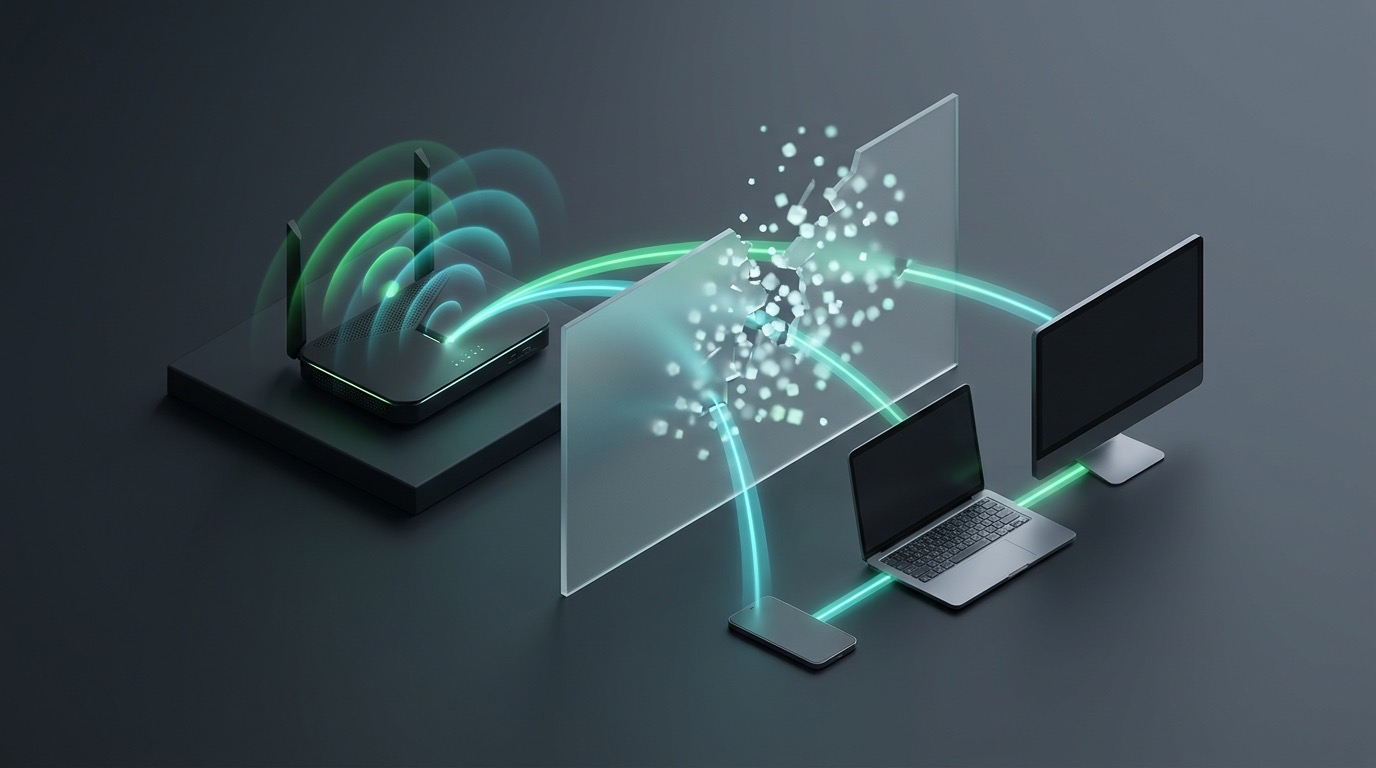
Whether you are using SyncDrop, AirDrop, LocalSend, or Windows Nearby Share, one of the most common headaches is when both devices are clearly connected to the exact same Wi-Fi network, yet neither device can see the other in the nearby transfer list.
Local peer discovery relies on mDNS (Multicast DNS) or UDP broadcast packets (such as port 53317). If your home router, operating system, or firewall intercepts or discards these multicast packets, your devices might as well be in separate dimensions.
Here is a 5-step troubleshooting guide prepared by the SyncDrop engineering team to diagnose and resolve device discovery problems.
Step 1: Check "Private Wi-Fi Address" on Mobile (iOS & Android)
Modern operating systems (iOS 14+ and Android 10+) enable MAC randomization by default for privacy reasons. In certain home networks or Mesh router setups, frequently rotating virtual MAC addresses can cause delays in router ARP tables, leading to dropped mDNS packets.
On iOS (iPhone / iPad):
- Open Settings > Wi-Fi.
- Tap the blue ⓘ next to your active network.
- Check "Private Wi-Fi Address": In trusted home/office networks, try toggling this to Off or Fixed.
- Critical: Go to Settings > SyncDrop and verify that Local Network permission is enabled. If this was accidentally denied, iOS completely blocks all LAN traffic for the app.
On Android:
- Open Settings > Wi-Fi / WLAN and tap your connected network details.
- Under Privacy, switch from "Use randomized MAC" to "Use device MAC".
Step 2: Ensure Windows Network is Set to "Private", Not "Public"
When Windows 10/11 connects to a Wi-Fi network for the first time, it frequently defaults to a "Public Network" profile.
Under a Public Network profile, Windows Defender Firewall automatically applies strict rules: it completely blocks network discovery and refuses incoming connection requests from other local devices.
How to switch to Private Network:
- Click the Wi-Fi icon on the Windows taskbar and open Network & Internet Settings.
- Click on your active Wi-Fi connection properties.
- Change Network profile type from "Public (Recommended)" to "Private Network".
- Once changed, Windows immediately opens inbound ports for local discovery and file sharing.
Step 3: Check Router for "AP Isolation" and "Guest Networks"
This is the most common hardware cause of local peer-to-peer discovery failure.
1. Make sure you are not on a Guest Network
Many home routers (ASUS, TP-Link, Netgear, Xiaomi) have a Guest Wi-Fi feature enabled. For guest security, guest networks deliberately block communication between connected clients, allowing only outbound internet access.
- Fix: Ensure both sender and receiver devices are connected to your primary Wi-Fi, not the guest network.
2. Disable "AP Isolation / Client Isolation"
AP Isolation is designed for public venues (airports, cafes, universities) to prevent users on the same subnet from probing each other. In a home or studio environment, it breaks local transfer tools completely.
- Log in to your router admin panel (usually
192.168.1.1or192.168.0.1). - Navigate to Wireless Settings > Advanced Settings.
- Locate AP Isolation, Client Isolation, or Station Isolation.
- Set it to Disabled / Off, then save and reboot the router.
Step 4: Address Dual-Band (2.4GHz vs 5GHz) & Mesh Node Roaming
Many modern Wi-Fi 6 routers combine 2.4GHz and 5GHz into a single SSID (Smart Connect).
- If your laptop is connected to 5GHz while your phone is on 2.4GHz, certain router firmwares fail to bridge multicast packets properly across frequency bands.
- Similarly, in a multi-node Mesh setup, if one device is connected to the living room node and another to the bedroom node, cross-node multicast forwarding can drop packets.
Quick Fixes:
- In router settings, enable IGMP Snooping or Multicast Routing / Forwarding.
- If router firmware is outdated, consider splitting the 2.4GHz and 5GHz networks into separate SSIDs (e.g.,
Home_5GandHome_2.4G) so high-speed transfers stay on the same band.
Step 5: The Ultimate Fallback — Direct IP Connection
If you are on a university campus network, corporate enterprise network, or hotel Wi-Fi where you do not have admin access to router settings, what should you do?
Modern LAN transfer tools (including SyncDrop and LocalSend) support Direct IP mode:
- Check the local IP address on the receiving computer (e.g., run
ipconfigon Windows orifconfigon Mac to find192.168.1.105). - On your phone's transfer screen, choose "Manual IP / Direct Connect".
- Enter the receiver's IP address and port.
- The sending device bypasses broadcast discovery entirely and initiates a direct point-to-point TCP handshake, successfully traversing most restricted network subnets.
Related Guides
How to Losslessly Export All iCloud Photos to an External Drive or NAS on Mac (No 1,000-Item Limit)
Out of iPhone/Mac storage or stuck with iCloud Web's 1,000-photo export limit? Learn how SyncDrop for macOS exports full-resolution HEIC, JPG, RAW, 4K videos, and Live Photos directly to your external SSD or NAS with pause/resume support.
Mobile Studio Mode Guide: Real-Time Camera Tethering to Mac/PC, Smart TVs, NAS, Google Drive, Dropbox, SFTP & S3
Turn your smartphone into a wireless tethered camera! Stream photos instantly to Mac/PC monitors or Smart TVs with SyncDrop Studio Mode while syncing seamlessly to NAS, Google Drive, Dropbox, SFTP, WebDAV, SMB & S3.